Sure-Fire Help
Remote Support Made Simple
Important: Use Our TeamViewer Only!
You must use our specific version of TeamViewer. If you have a different version installed, please uninstall it first, then download ours using the button below.
📥 Download TeamViewer
Click the green button below to download our official TeamViewer file.
Download TeamViewer💡 Tip: Right-click and choose "Save Link As" to save to your Desktop
Uninstall Old Versions
Remove any existing TeamViewer from your computer before downloading ours.
Save to Desktop
Save the file to your Desktop so you can easily find it later.
Double-Click to Run
After downloading, double-click the file on your Desktop to start it.
📋 Step-by-Step Instructions
Right-Click the Download Button
Move your mouse over the green "Download TeamViewer" button above. Then Right-Click on it (don't left-click!).
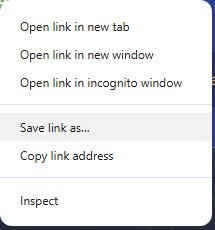
Choose "Save Link As" or "Save Target As"
A menu will appear. Look for an option that says:
Save Link As... (Chrome/Firefox) or Save Target As... (Internet Explorer/Edge)
📸 It will look something like this:
Save to Your Desktop
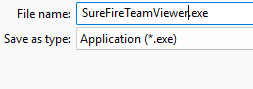
A "Save As" window will open. Click on "Desktop" on the left side, then click Save.
📸 Select Desktop and click Save:
Find the File on Your Desktop
Look on your Desktop for the TeamViewer icon. It will look like a blue icon with two arrows.
📸 The icon looks like this:

Double-Click to Run TeamViewer
Double-click the TeamViewer icon on your Desktop. The program will start and you'll see your ID number to give to our support team. That's it - you're ready!